Streaming performance
Wi-Fi vs Ethernet for streaming
By the IPTV Fox TV editorial teamLast reviewed 4 min read
Short answer
Ethernet is better for streaming whenever you can use it: it delivers your full speed with far less interference and fewer drops than Wi-Fi. Wi-Fi is fine when the device is close to the router on the 5 GHz band and the signal is strong. For a TV in a distant room, a wired connection — or a wired mesh or powerline setup — usually fixes buffering.
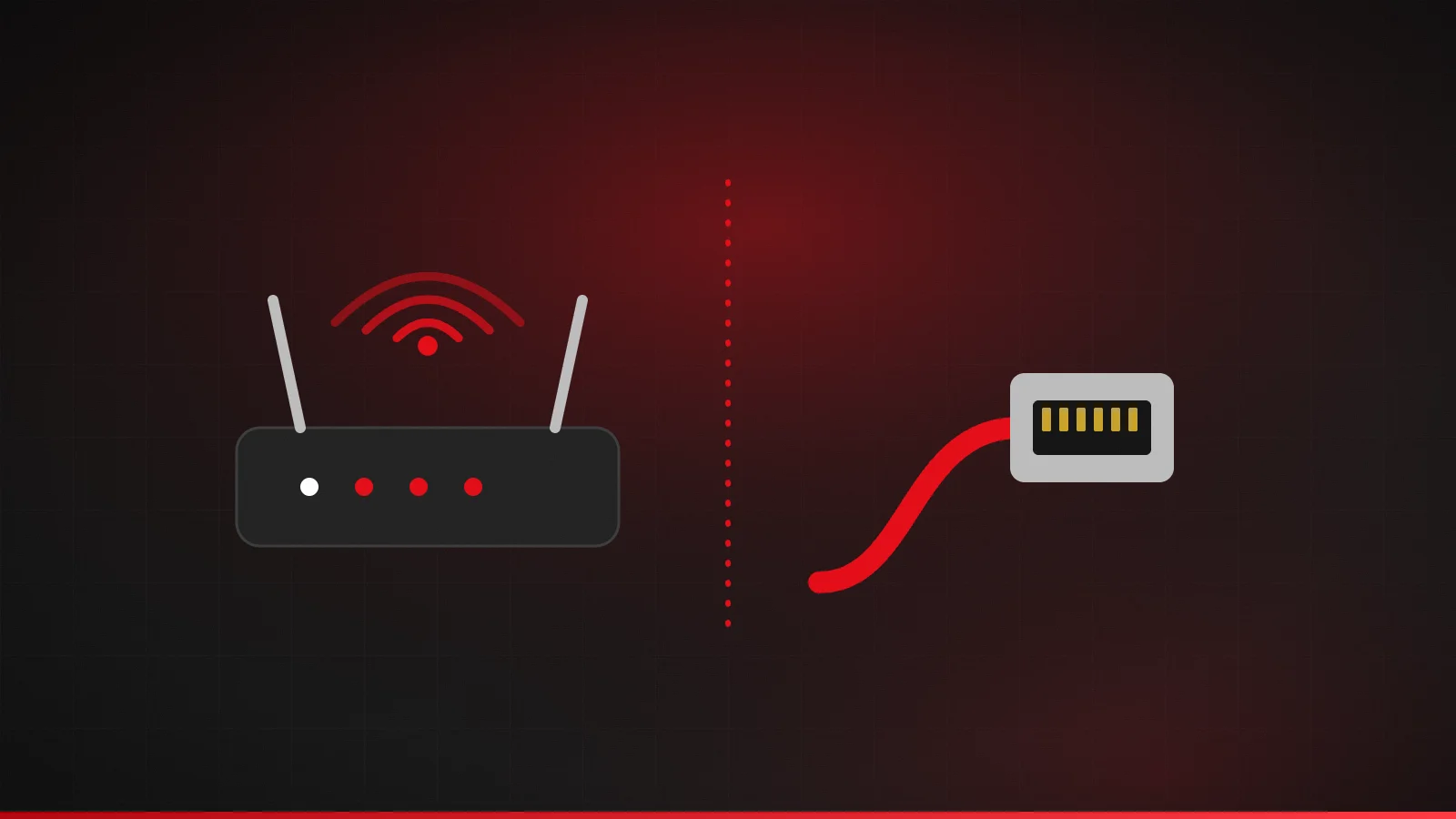
Why wired connections stream more reliably
Wi-Fi shares the air with your neighbors' networks, Bluetooth devices and household appliances. Walls, floors and distance weaken the signal, and every device on the network competes for airtime. An Ethernet cable avoids all of that: the connection is dedicated, consistent and unaffected by where the router sits.
For live IPTV, consistency matters more than peak speed. A Wi-Fi link that tests at 200 Mbps but drops to 5 Mbps for a few seconds causes buffering. A 100 Mbps wired link that never drops won't.
Quick comparison
| Ethernet | Wi-Fi (5 GHz) | Wi-Fi (2.4 GHz) | |
|---|---|---|---|
| Stability | Excellent | Good near the router | Variable; more interference |
| Range | Up to 100 m (328 ft) of cable | Shorter; weakened by walls | Longer, but slower |
| Typical use | Living-room TV, set-top streamers | Devices in the same or next room | Distant rooms, older devices |
| Setup effort | Cable run or adapter | None | None |
When Wi-Fi is perfectly fine
- The streaming device is in the same room as the router, or one wall away.
- It connects on 5 GHz (or 6 GHz with Wi-Fi 6E/7) with a strong signal.
- A speed test on the device itself comfortably exceeds what you need — see internet speed for IPTV.
- Buffering is rare or never happens.
Ways to get a wired connection to your TV
- Direct cable. Run a Cat 6 cable from the router to the TV or streaming device. Flat cables can run under rugs or along baseboards.
- Ethernet adapter for streaming sticks. Fire TV Sticks and Chromecast with Google TV have no Ethernet port, but USB/power Ethernet adapters are available for them.
- Powerline adapters. These send network data over your home's electrical wiring. Results vary with wiring quality, but they often beat weak Wi-Fi.
- MoCA adapters. If you have existing coaxial cable from a past cable TV install, MoCA adapters turn it into a fast, stable network link.
- Wired mesh backhaul. If you use mesh Wi-Fi, connecting the mesh points with Ethernet improves every device on the network.
Getting the most from Wi-Fi
- Put the router somewhere central and raised, not in a cabinet or behind the TV.
- Use the 5 GHz band for streaming devices within range.
- Use the HDMI extender that comes with most sticks so the device isn't shielded by the TV.
- In a large or multi-storey home, consider a mesh Wi-Fi system.
- Keep router firmware up to date.
Wi-Fi generations in plain English
| Name | Standard | Bands | What it means for streaming |
|---|---|---|---|
| Wi-Fi 5 | 802.11ac | 5 GHz | Fine for HD and most 4K close to the router |
| Wi-Fi 6 | 802.11ax | 2.4 and 5 GHz | Handles busy homes with many devices better |
| Wi-Fi 6E | 802.11ax | Adds 6 GHz | Extra, less crowded spectrum at short range |
| Wi-Fi 7 | 802.11be | 2.4, 5 and 6 GHz | Newest; benefits depend on both router and device |
A connection is only as fast as its slowest end: a new router won't help much if your streaming stick only supports an older standard.
How to test whether Wi-Fi is the problem
- Run a speed test on the TV or streaming device over Wi-Fi at the time you usually watch.
- Temporarily connect the same device to the router with an Ethernet cable, or move it next to the router, and test again.
- If the wired or close-range result is much better, Wi-Fi is your bottleneck.
- If both results are poor, the problem is your internet connection or plan, not Wi-Fi.
Powerline, MoCA or mesh: which to choose?
| Option | Best when | Watch out for |
|---|---|---|
| Powerline adapters | No spare cabling and the TV is on the same electrical circuit | Speeds vary with wiring and surge-protected strips |
| MoCA adapters | There's existing coaxial cable in the walls | Needs a coax outlet near both router and TV |
| Mesh Wi-Fi | Large or multi-story homes needing coverage everywhere | Wireless hops add delay; wired backhaul is best |
Router placement checklist
- Put the router somewhere central and raised, ideally on a shelf rather than the floor.
- Keep it out of cupboards, cabinets and away from the back of the TV.
- Move it away from microwaves, cordless phone bases and large metal objects.
- Point external antennas in different directions, some upright and some angled.
After each change, run the same speed test on the TV again at the same time of day, so you're comparing like with like rather than guessing whether it helped.
Choosing a streaming device with networking in mind
If you're buying new hardware, a device with a built-in Ethernet port (some streaming boxes, Apple TV 4K models with Ethernet, many Smart TVs) saves you an adapter. Our devices and apps overview covers the main options for IPTV.
Frequently asked questions
Is 2.4 GHz ever better for streaming?
Yes, when the device is far from the router or behind several walls. 2.4 GHz reaches further, but it's slower and more crowded, so use it when 5 GHz drops out.
Will a Wi-Fi extender fix buffering?
Sometimes, but basic extenders can halve the available speed. A mesh system or a wired option usually works better for a streaming TV.
Is Ethernet faster than Wi-Fi?
Usually it's more consistent rather than dramatically faster. For streaming, consistency is what prevents buffering.
Does a Firestick work with Ethernet?
Fire TV Sticks have no Ethernet port, but compatible Ethernet adapters connect through the stick's power port.
Which Ethernet cable should I buy?
Cat 6 is a good, inexpensive choice for home streaming.
Related guides
How to fix IPTV buffering
Why IPTV buffers and how to fix it, step by step: restart, test your speed on the TV, improve Wi-Fi, adjust the player app, then contact support.
4 min read
How much internet speed do you need for IPTV?
Internet speed requirements for IPTV in HD and 4K, based on FCC and Netflix guidance, plus how to plan bandwidth for several screens and test your real speed.
4 min read
IPTV troubleshooting: common errors and how to fix them
Fix common IPTV errors: login failed, account expired, max connections, channels not playing, black screen, no sound, missing guide and app crashes.
4 min read